Widget & iframe embed
One script tag for the floating bubble, or an iframe for an inline chat anywhere you can't add scripts
The fastest way to put your support agent on a site: one <script> tag. It works on any stack — no build step, no framework, no dependencies. If you can't add script tags at all (some site builders, sandboxed pages), the iframe embed serves the same chat as a full page you can frame anywhere.
The script tag
Paste this just before the closing </body> tag, with your project's public key:
<script
	src="https://api.clankersupport.com/widget.js"
	data-project="pk_your_project_key"
	async
></script>
That's the whole install. The public key is safe to expose — it only identifies which project's agent answers. The dashboard generates this snippet with your key and brand color already filled in; see where to find it below.
Data attributes
The script tag is configured entirely through data-* attributes. This is the complete list:
| Attribute | Default | What it does |
| --------------------------- | ------------------------------------- | -------------------------------------------------------------------------- |
| data-project | — (required) | Your project's public key |
| data-api | the origin the script was loaded from | API origin — only set this when self-hosting the API on a different domain |
| data-brand | #111827 | Accent color for the launcher and chat header |
| data-mode | bubble | inline renders the chat in-page instead of as a floating bubble |
| data-escalation-threshold | agent default (3) | Visitor messages before the widget offers Talk to a human |
Because data-api defaults to wherever widget.js was served from, a self-hosted install points at your own API automatically — no extra configuration.
Bubble vs inline
- Bubble (the default) — a launcher in the bottom-right corner of every page the script is on. Visitors click it to open the chat panel. Recommended for site-wide support.
- Inline (
data-mode="inline") — the chat renders in-page, always open, instead of as a floating bubble. For a chat pinned to a specific spot on a page — a contact page, a help center — use the iframe embed.
Shadow-DOM isolation
The widget mounts inside a shadow DOM, so it is fully isolated from the host page: your site's CSS can't restyle or break the chat, and the widget's styles never leak into your page. It ships as a single self-contained file — no external stylesheets or fonts to load.
The iframe embed
GET https://api.clankersupport.com/embed/{projectKey} serves a full-page chat — the same widget in inline mode — designed to be iframed anywhere (the page explicitly allows framing by any site). Use it where script tags aren't an option:
<iframe
	src="https://api.clankersupport.com/embed/pk_your_project_key"
	width="400"
	height="600"
	title="Support chat"
	style="border: 0; border-radius: 12px;"
	loading="lazy"
></iframe>
The embed page reads your project's brand color and escalation threshold from its settings, so it stays in sync with the dashboard without any attributes. This is also what the WordPress plugin's [clanker_support] shortcode renders. You can open the URL directly in a browser to try your agent before installing anything.
Copy your snippet from the dashboard
Open Projects → your project → Widget in the dashboard. The Install section generates both snippets — floating bubble and inline embed — with your public key and brand color pre-filled, next to the embed URL and a live preview.
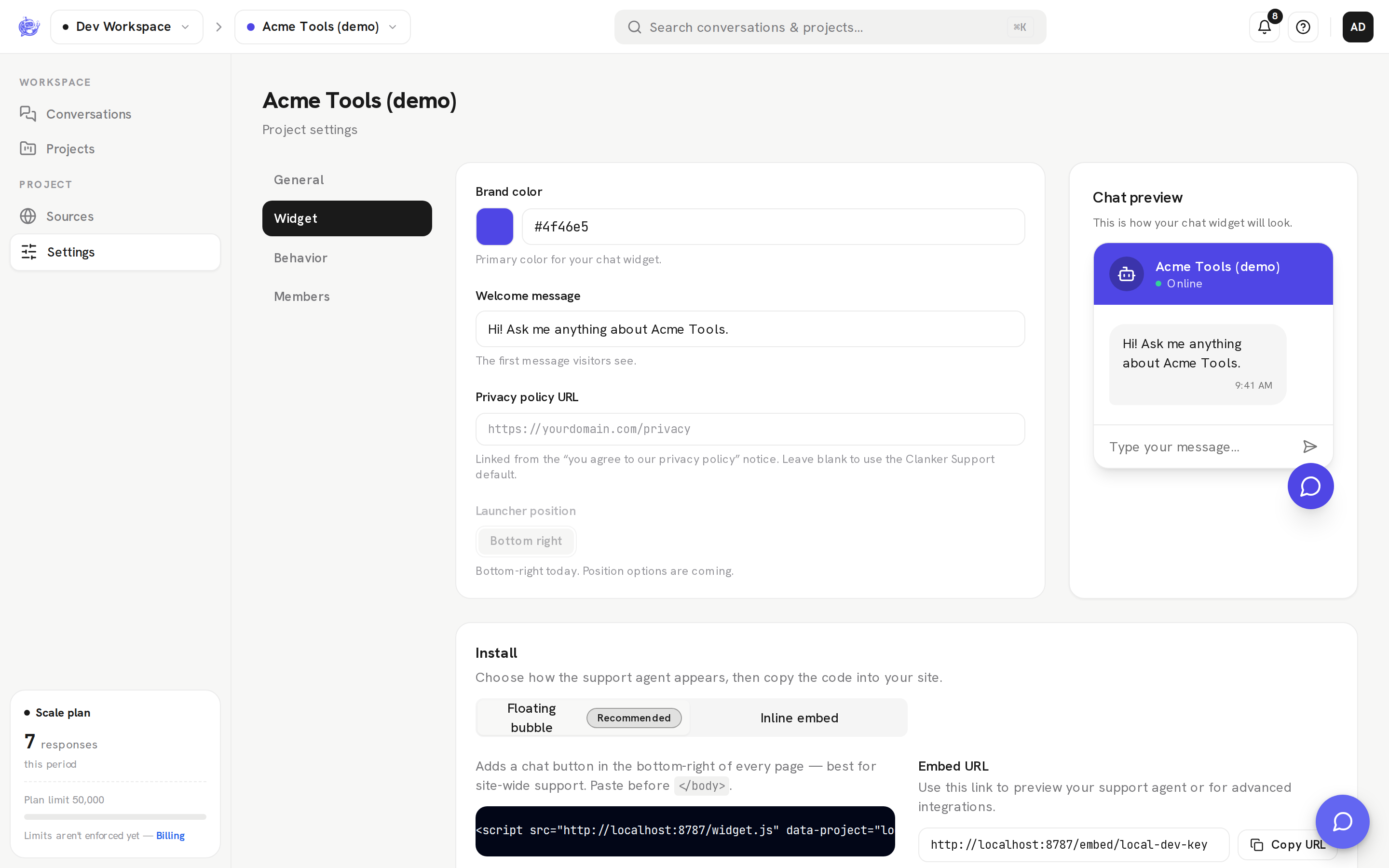
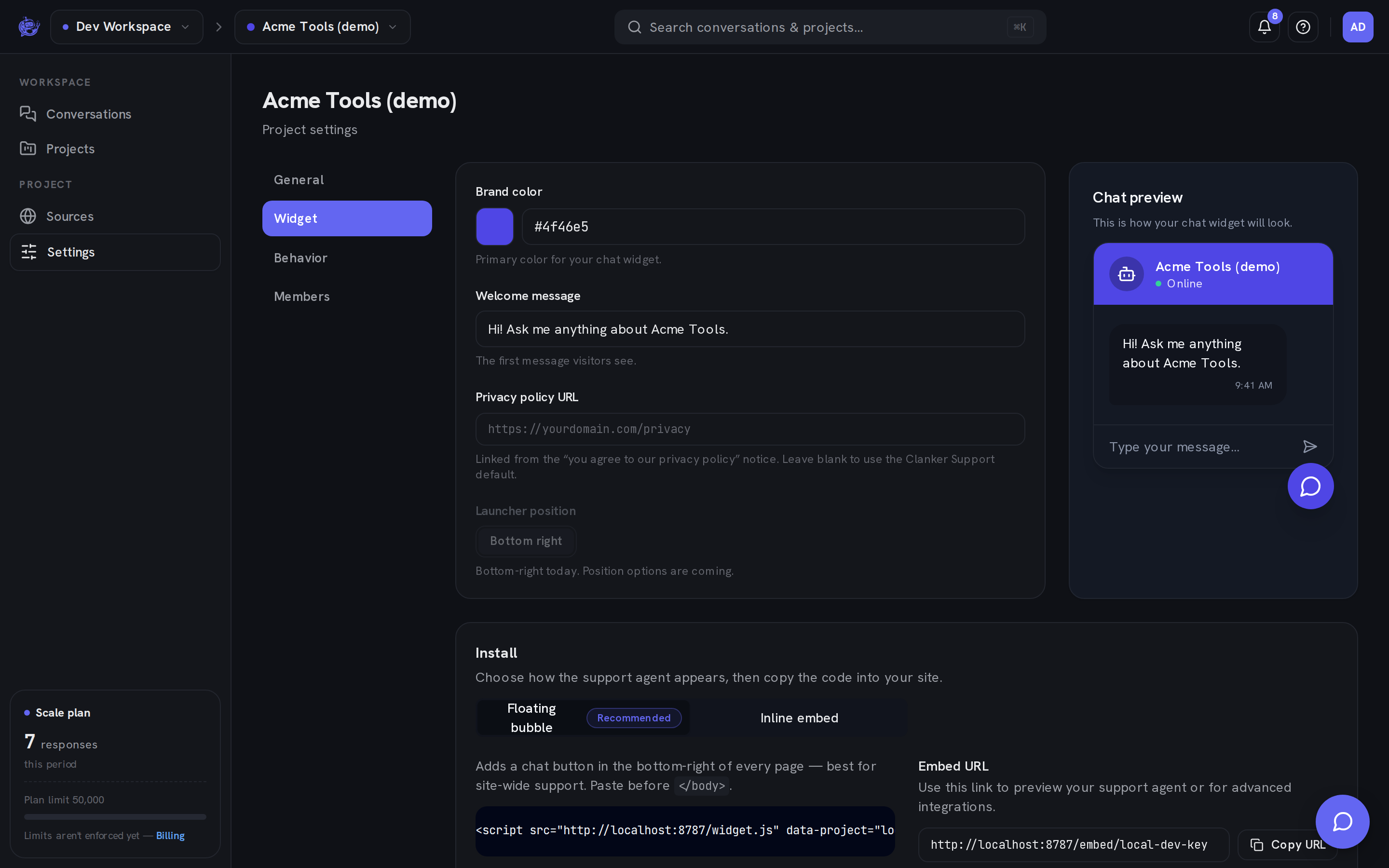
See Widget & embedding for the full tour of the Widget tab, including appearance settings and the welcome message.
Other install paths
- React or Next.js? Use the React SDK — a Server Component instead of a script tag, restylable with CSS variables.
- Shopify — a theme app extension is coming soon to the App Store; until then, paste the script tag into your theme.
- WordPress — the plugin enqueues the widget for you and adds an iframe shortcode.