Dashboard overview
Find your way around the dashboard — the top bar, sidebar, and account menu that frame every page
Everything you do in Clanker Support — triaging conversations, tuning your support agent, growing its knowledge base — happens in the dashboard at app.clankersupport.com. Every page shares the same chrome: a top bar for switching context, a sidebar for navigation, and an account menu. This page walks through that chrome so the rest of this section reads without surprises. If you haven't created an agent yet, start with Getting started.
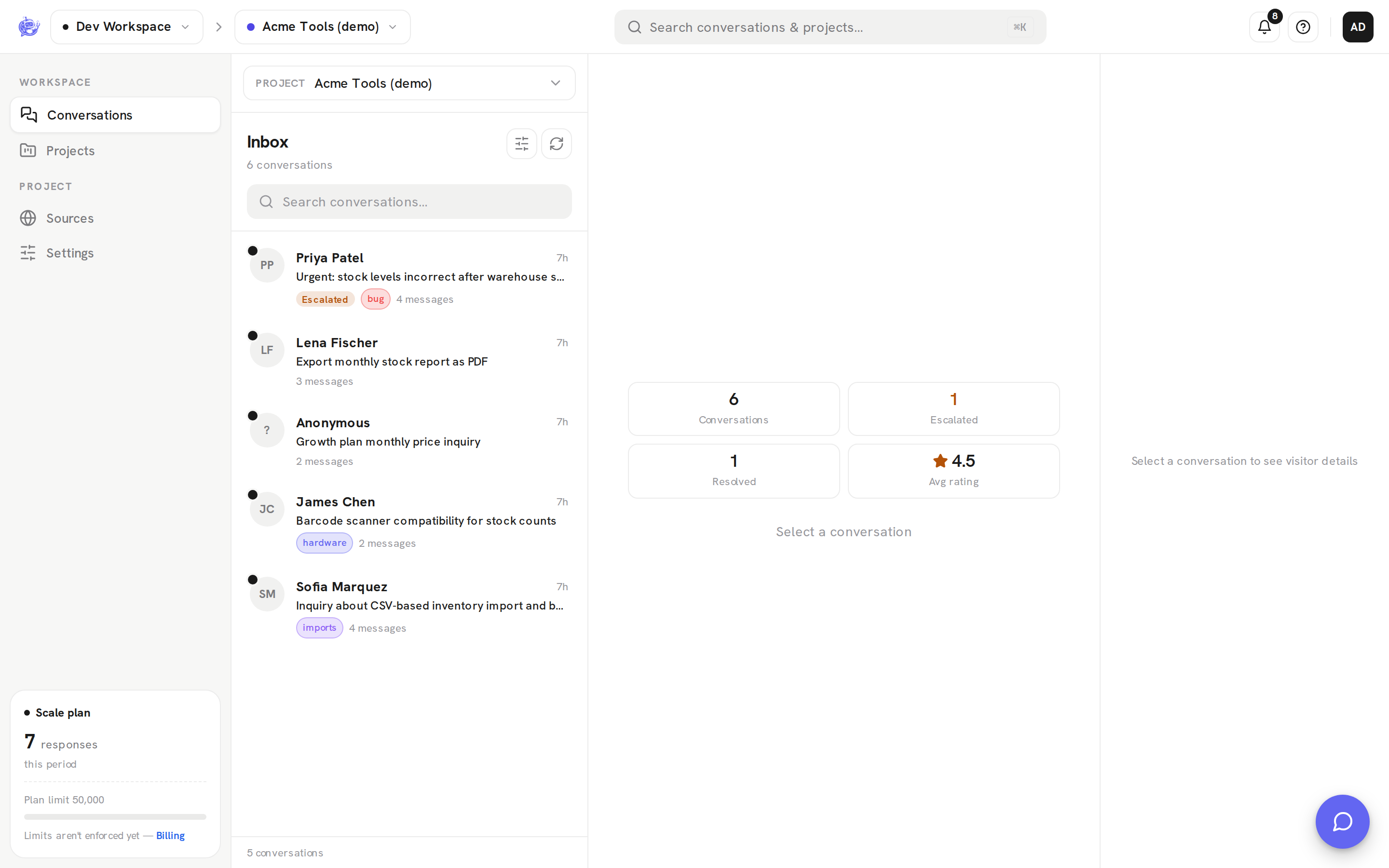
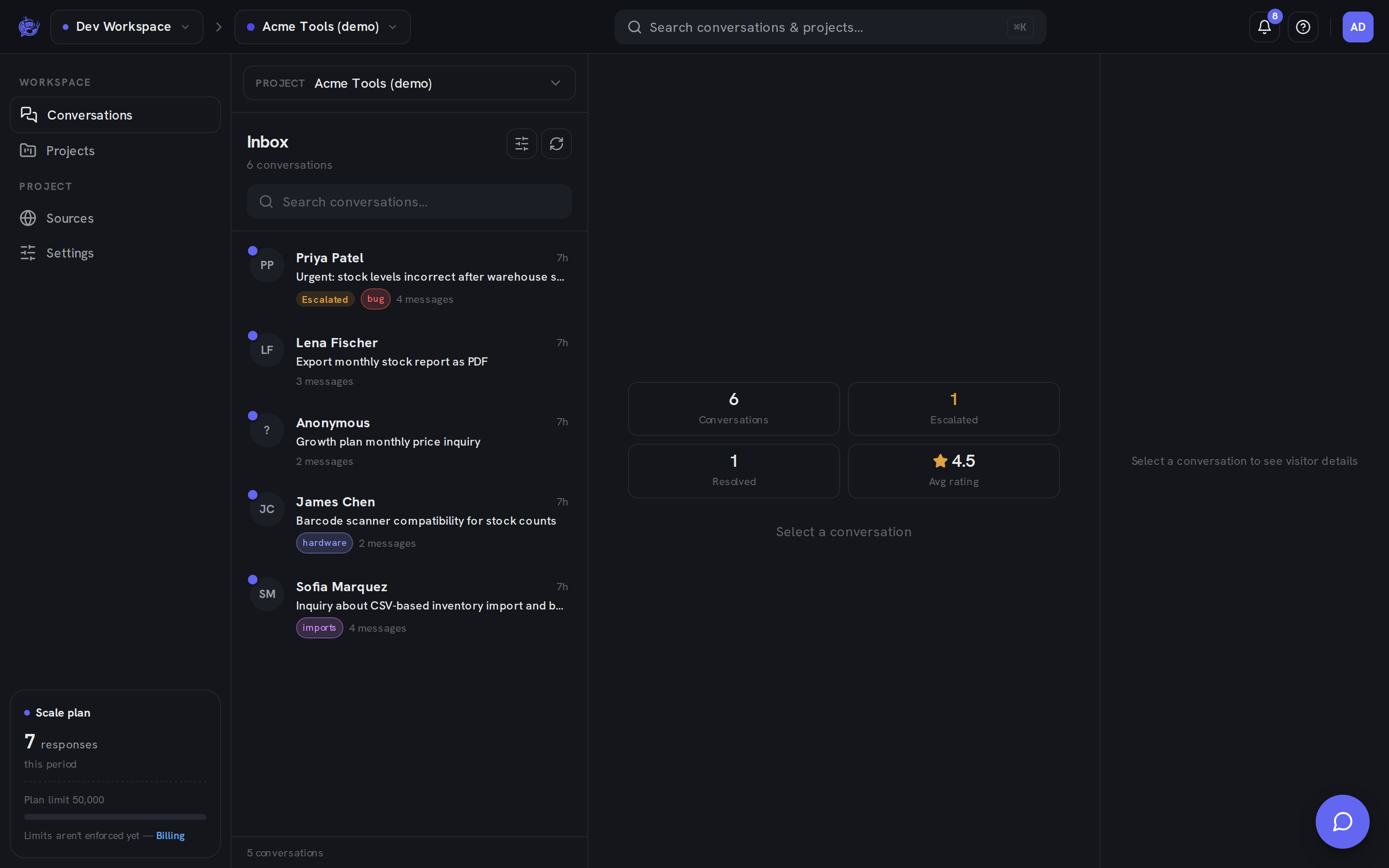
Top bar
| Control | What it does | | ---------------------- | ---------------------------------------------------------------------------------------------------------------------------------------------------- | | Workspace switcher | Switches between the workspaces you belong to. Each workspace has its own projects, members, and billing — see Workspaces & members. | | Project switcher | Selects the project you're working on and jumps to its pages. Hidden until the workspace has at least one project. | | Search | Opens the command palette — also on ⌘K / Ctrl+K. See Search & command palette. | | Notification bell | A workspace-wide feed of new conversations, escalations, and visitor replies. See Notifications. | | Help | Opens the documentation in a new tab. | | Account menu | Your initials avatar — profile, billing, appearance, and sign out (see below). |
Sidebar
The sidebar has two groups:
- Workspace — Conversations opens the Inbox; Projects opens the projects list.
- Project — Sources and Settings for the selected project: its knowledge sources and project settings. This group appears once a project is selected.
At the bottom, the usage meter shows the workspace's plan and how many AI responses it has used this billing period — the same numbers as the Billing page.
Until the workspace is on a plan, an amber banner reminds you that your agent isn't live yet; Choose a plan takes you to the Billing page to pick one.
Account menu
Click your avatar in the top-right corner. The menu shows the email you're signed in with and your workspace role, and contains:
- Account — your profile and account settings. See Account.
- Billing — the workspace's plan and usage. See Billing.
- Appearance — switch the dashboard between Light, Dark, and System (follows your OS setting).
- Sign out — end your session.
Pages in this section
- Inbox — triage every conversation: filters, live search, and headline stats.
- Conversations — read a thread, reply to visitors, and promote answers into knowledge.
- Escalation & human handoff — how the agent hands a conversation to your team and stands down.
- Resolving conversations — resolve, reopen, or delete finished conversations.
- Tags — label conversations with workspace tags and filter the inbox by them.
- Notifications — the bell's feed of new conversations, escalations, and replies.
- Search & command palette — find any conversation or project with ⌘K.
- Projects — create and manage the support agents you embed.
- Project settings — name, branding, model, instructions, and escalation rules.
- Widget & embedding — style the widget and install it with a script tag, iframe, or the React SDK.
- Knowledge sources — teach the agent from website pages, text snippets, and Q&A pairs.
- Workspaces & members — how workspaces group your team, projects, and billing.
- Billing & usage — plans, metered usage, and your Stripe subscription.
- Account — your profile, email, and account deletion.