Escalation & human handoff
How a conversation hands off from the support agent to your team, and how the agent stands down once a human takes over
When the support agent can't resolve something, the visitor can hand the conversation to your team. The agent recaps the conversation for them, notifies your team, and stands down until a human has it covered. Everything on this page is configured per project.
When the widget offers a human
Each project controls how quickly the Talk to a human option appears in the widget. Open Projects → your project → Behavior and find the Escalation & handoff card:
| Field | What it does | | ----------------------- | ---------------------------------------------------------------------------------------- | | Offer a human after | Number of messages before the widget shows Talk to a human (defaults to 3) | | Notify email | Address emailed when a conversation escalates — leave blank to skip | | Slack webhook URL | Posts an escalation notice to a Slack channel via incoming webhook — leave blank to skip |
Set a low threshold if you want visitors to reach your team quickly; set it higher to let the agent try more answers first.
What the visitor sees
When the visitor chooses Talk to a human, a short handoff recap appears in the chat: one or two sentences, addressed to the visitor, summarizing what they asked about and what was already covered — so they don't have to repeat themselves once your team arrives. The Talk to a human button then disappears; a conversation escalates once.
Notifying your team
An escalation notifies your team through every channel you've configured, plus the dashboard itself:
- Email — sent to the project's Notify email address, when one is set.
- Slack — posted to the channel behind the Slack webhook URL, when one is set.
- Notification bell — the escalation always shows up in the dashboard's notification feed; clicking it opens the thread.
Escalated conversations in the inbox
Escalated conversations are easy to spot while triaging:
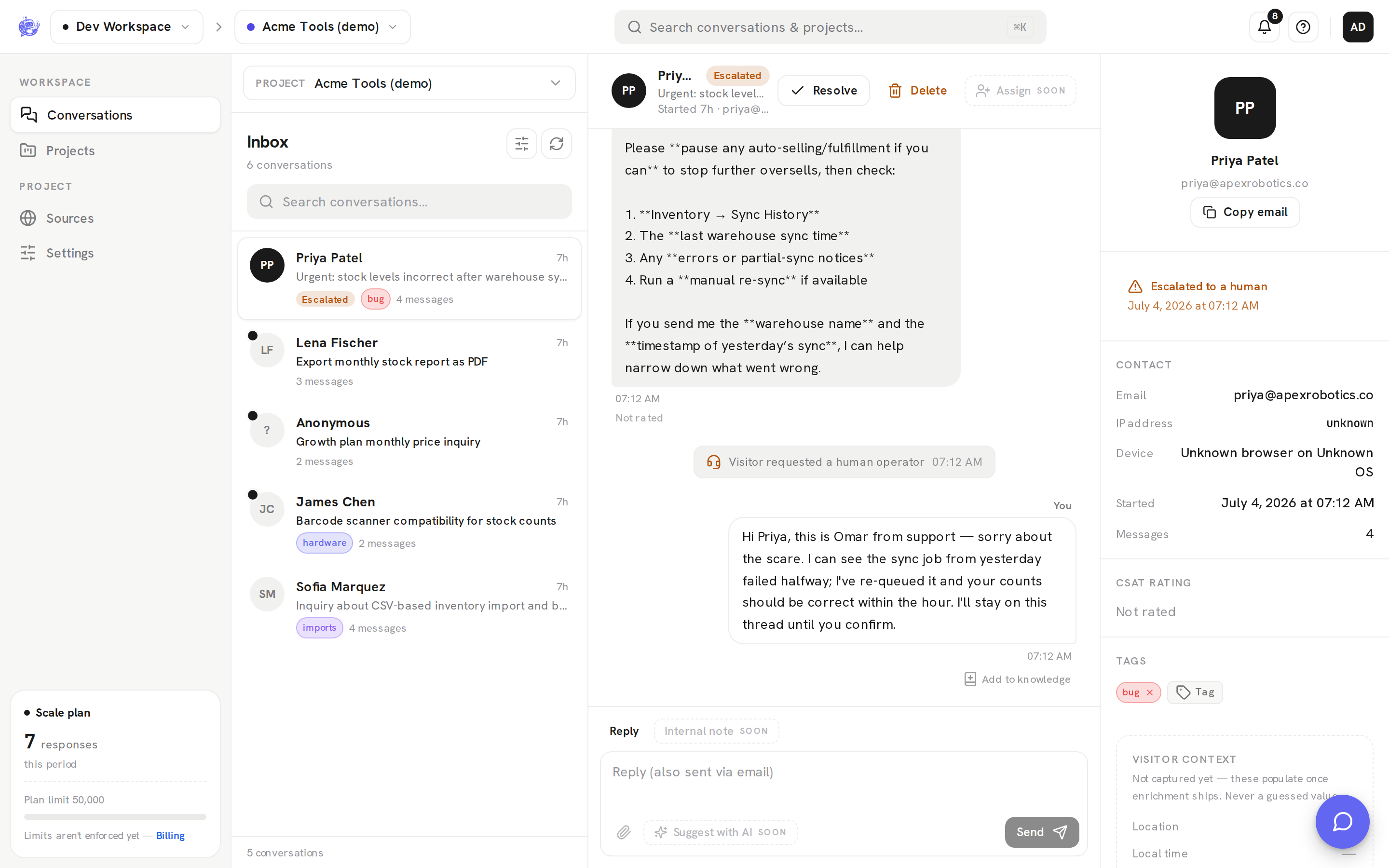
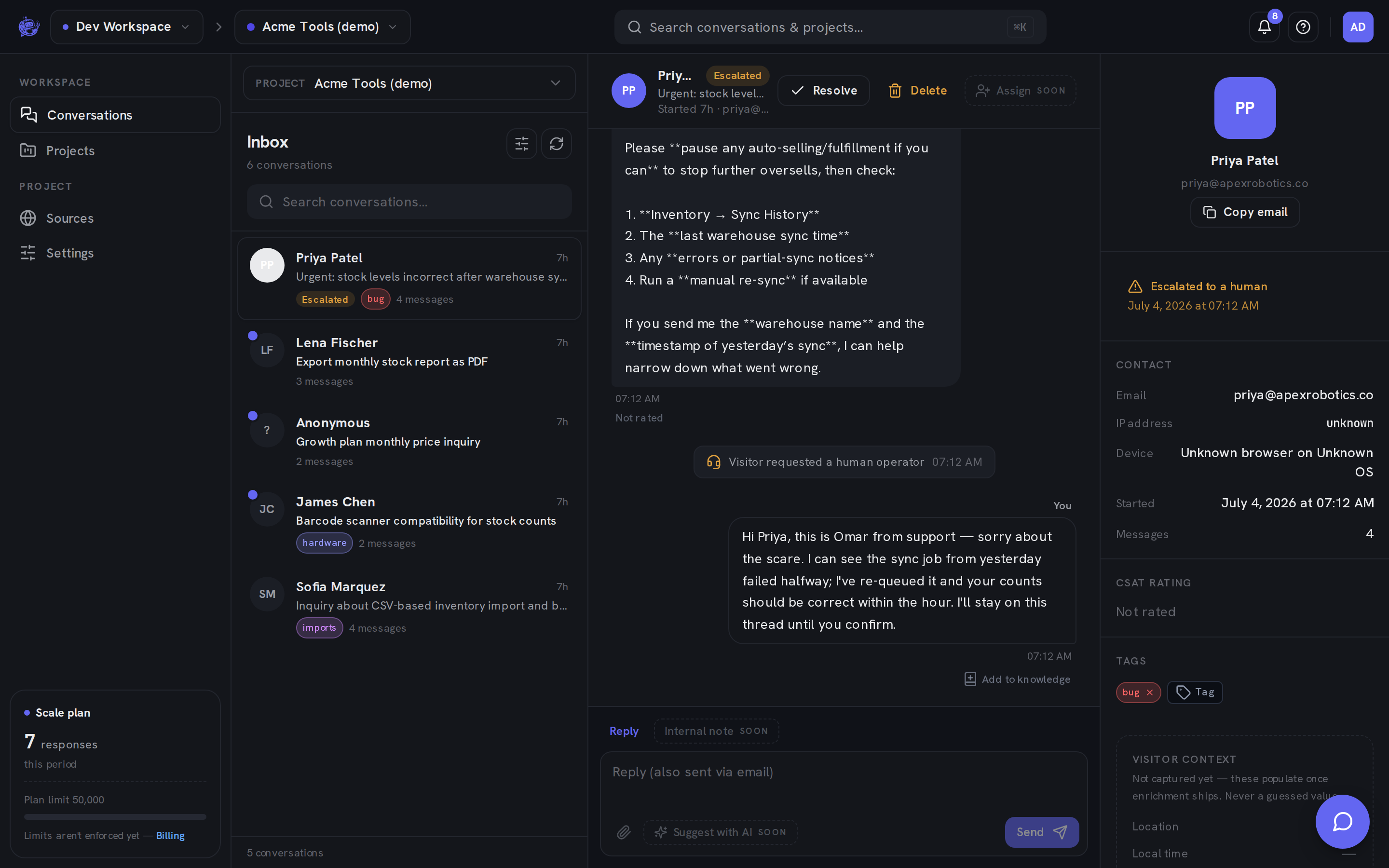
- The conversation row shows an amber Escalated badge, and the thread header's status pill reads Escalated.
- The details panel shows an amber Escalated banner with the date it happened.
- The list rail's Filters include a Status: Escalated option, and the inbox stats view counts escalated conversations.
- The handoff notice renders in the thread as a centered system message with a headset icon.
See the Inbox page for the full triage workflow.
The agent stands down
After escalation, the agent stops answering questions:
- While your team is on the way — if the visitor sends another message, the agent replies only with a brief holding note letting them know a human will follow up. It does not attempt to answer.
- Once a human has replied — the agent goes fully silent. Every later message from the visitor reaches only your team.
The handoff is one-way by design: a visitor who asked for a person never gets bounced back to the agent mid-conversation.
Replying and email threading
Reply from the inbox composer and your message appears in the visitor's widget. If the visitor shared an email address, the same reply also goes out by email — the composer's placeholder tells you when that's the case.
When the visitor answers that email instead of returning to the widget, their reply threads back into the same conversation in your inbox. There is no separate ticket to reconcile — chat and email stay one thread.