Tags
Label conversations with shared workspace tags, filter the inbox by them, and manage the tag list
Tags are colored labels you attach to conversations — "billing", "bug report", "VIP", whatever fits your workflow. They are workspace-level: every member sees the same tag list, and a tag created on one conversation is immediately available on all the others.
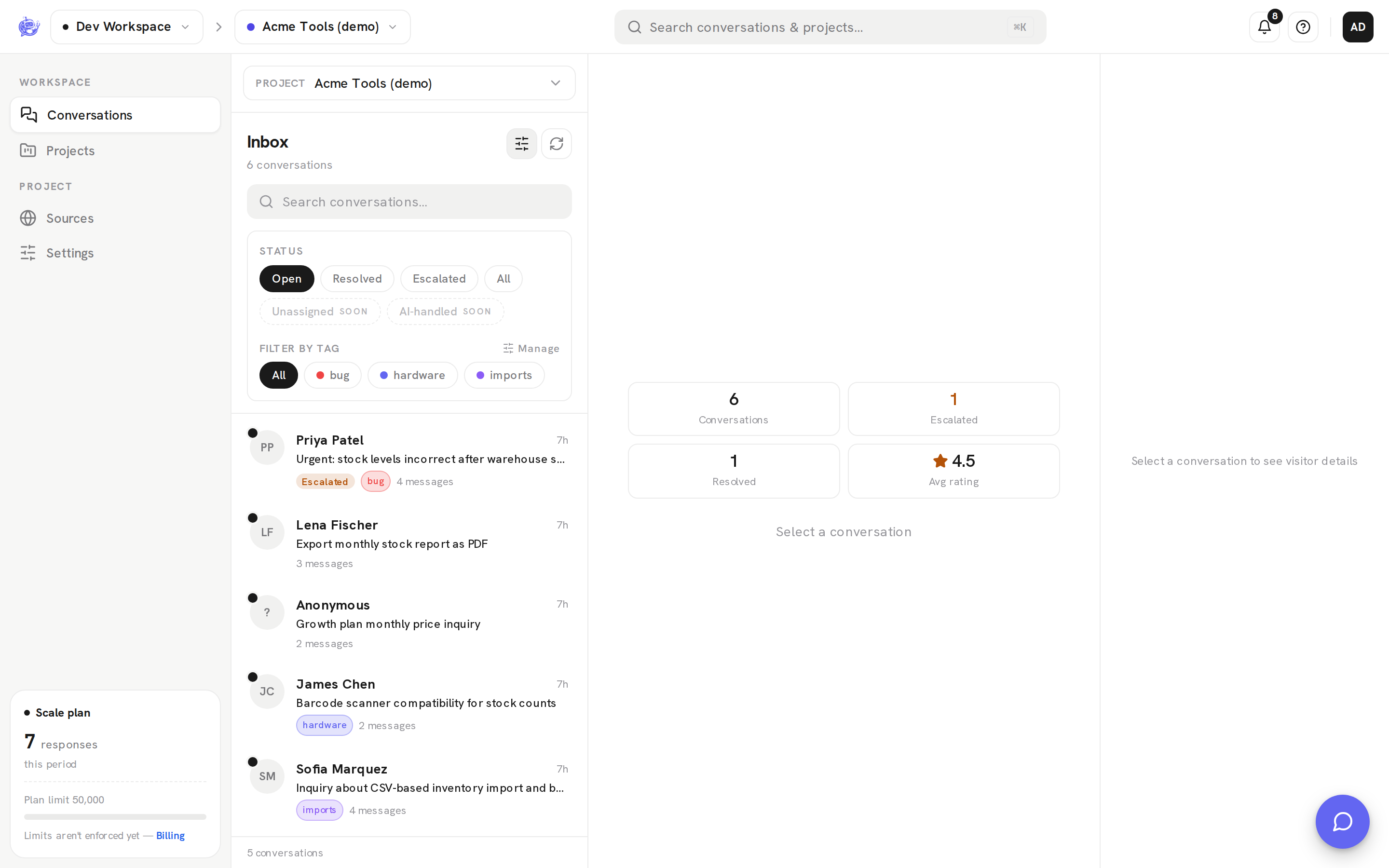
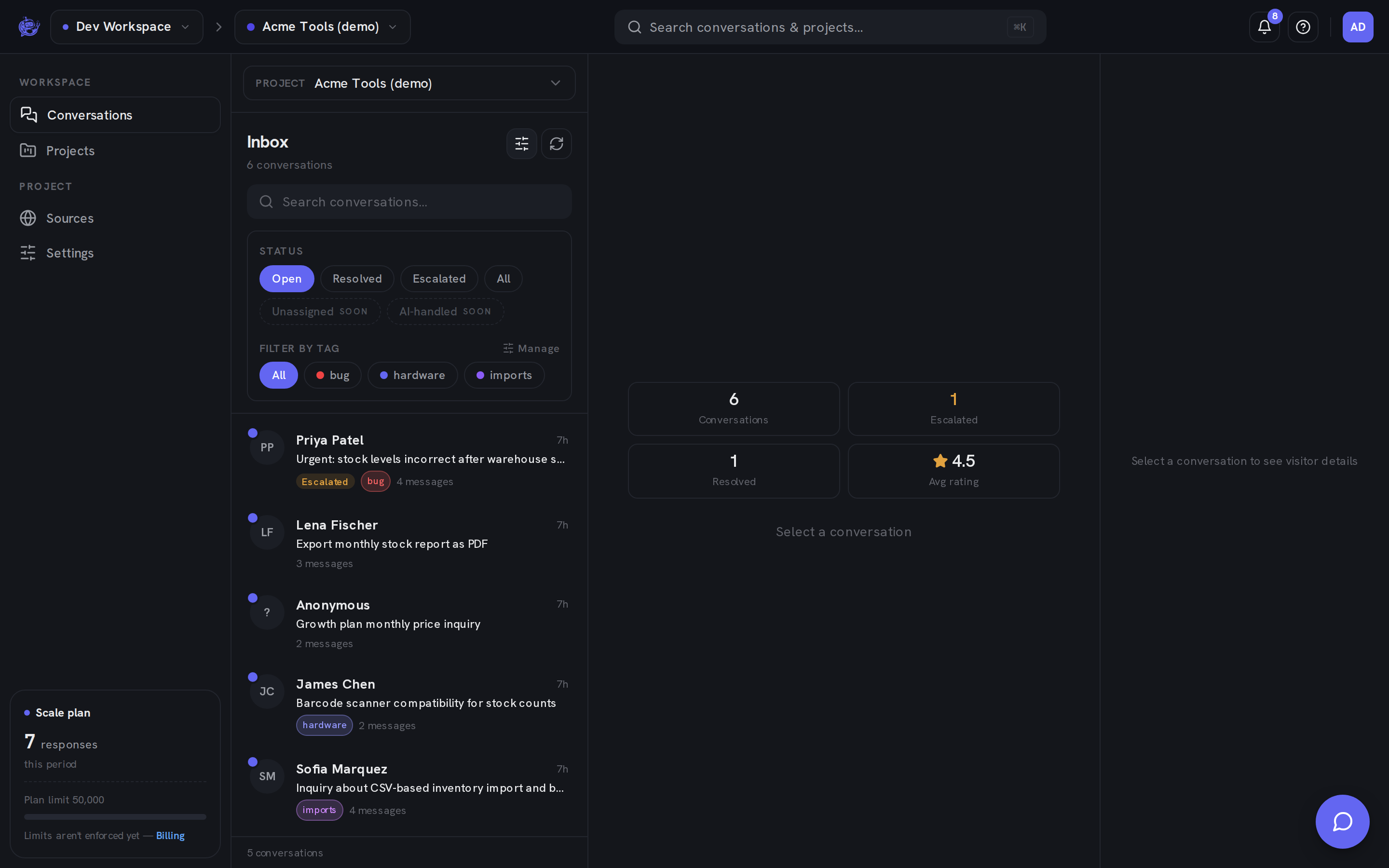
Tagging a conversation
Open a conversation in the Inbox and find the Tags section in the details panel (the right-hand panel on desktop, a sheet on smaller screens).
- Click Tag to open the tag picker. Type to search the workspace's existing tags and click one to toggle it on or off.
- If nothing matches what you typed, the picker offers Create "…" — this creates the tag and attaches it to the open conversation in one step. New tags get a color automatically; you can change it later in Manage tags.
- To remove a tag, click the × on its chip in the details panel.
Tag names are case-insensitive and unique per workspace (up to 40 characters) — creating "Billing" when "billing" already exists reuses the existing tag instead of adding a duplicate.
Any workspace member can create and apply tags.
Tag chips in the list
Each conversation's tags show as small colored chips on its row in the inbox list, so you can scan for a category without opening anything. Chips also appear in the details panel of the open conversation.
Filtering by tag
In the inbox list rail, click Filters to expand the filter panel. Under Filter by tag:
- All (the default) shows every conversation regardless of tags.
- Click a tag chip to show only conversations carrying that tag. Select several tags to match conversations that have any of them.
- The tag filter combines with the status filter and the search box, and the Filters toggle shows a badge with the number of active filters.
Managing tags
Admins and owners see a Manage link next to "Filter by tag" in the filter panel. It opens the Manage tags dialog, which lists every workspace tag with the number of conversations using it.
| Action | How | | ----------- | ------------------------------------------------------------------------------------------------------------------------- | | Rename | Click the pencil icon, edit the name, then press Enter (Escape cancels). The new name applies everywhere the tag is used. | | Recolor | Click the tag's color dot and pick a new color from the palette. | | Delete | Click the trash icon. A confirmation states how many conversations the tag will be removed from — this can't be undone. |
Renaming or recoloring updates the tag on every conversation at once; deleting removes it from all of them.
Who can do what
| Action | Agent | Admin | Owner | | ----------------------------------- | ----- | ----- | ----- | | Create a tag | Yes | Yes | Yes | | Add / remove tags on a conversation | Yes | Yes | Yes | | Filter the inbox by tag | Yes | Yes | Yes | | Rename, recolor, delete tags | No | Yes | Yes |
These limits are enforced server-side, not just hidden in the UI.