Conversations
Read a conversation thread, reply to visitors, and turn your best answers into knowledge
Selecting a conversation in the Inbox opens its full thread, with a details panel alongside it. This page covers working a single conversation: reading the transcript, replying, and promoting a good reply into your knowledge base.
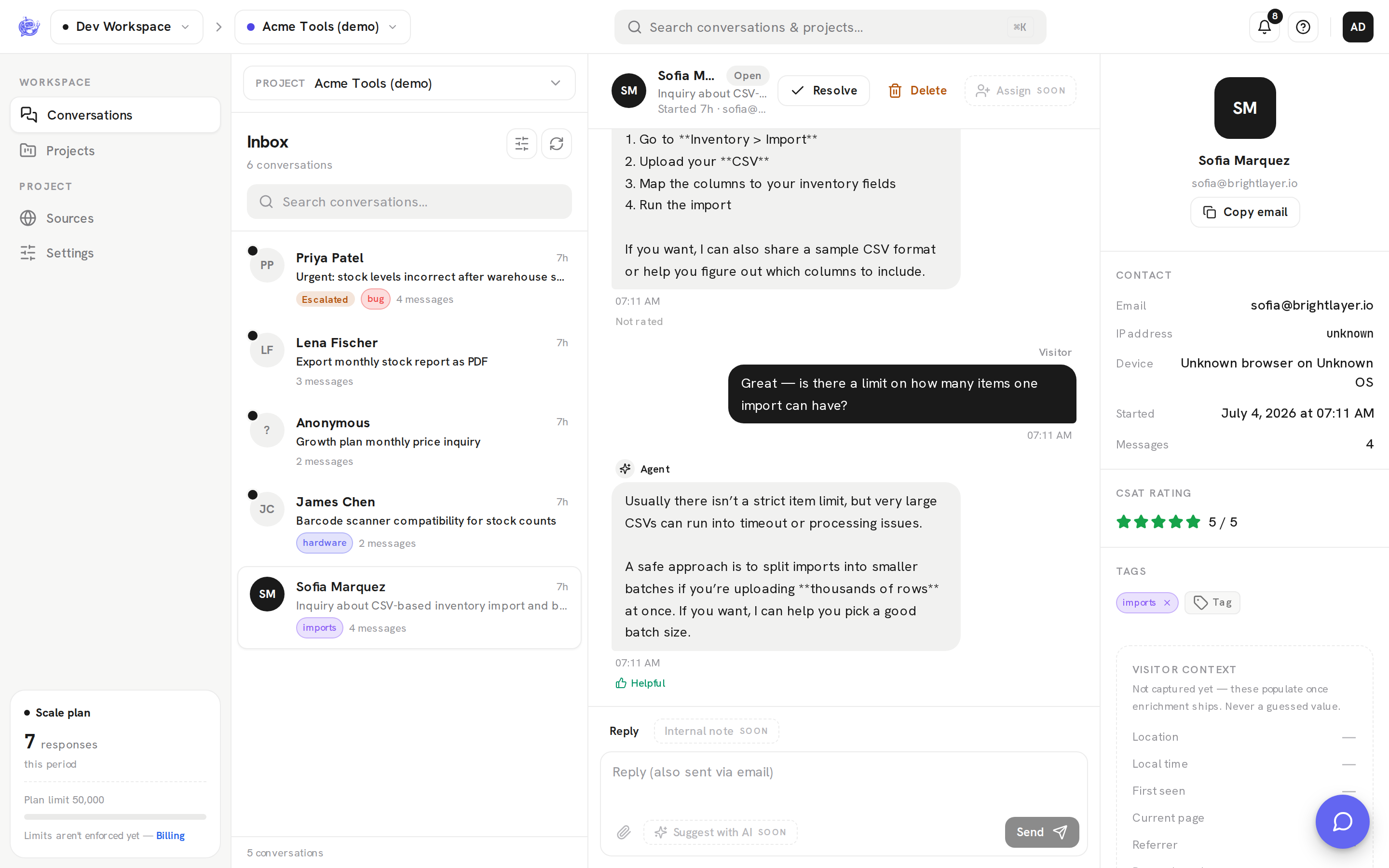
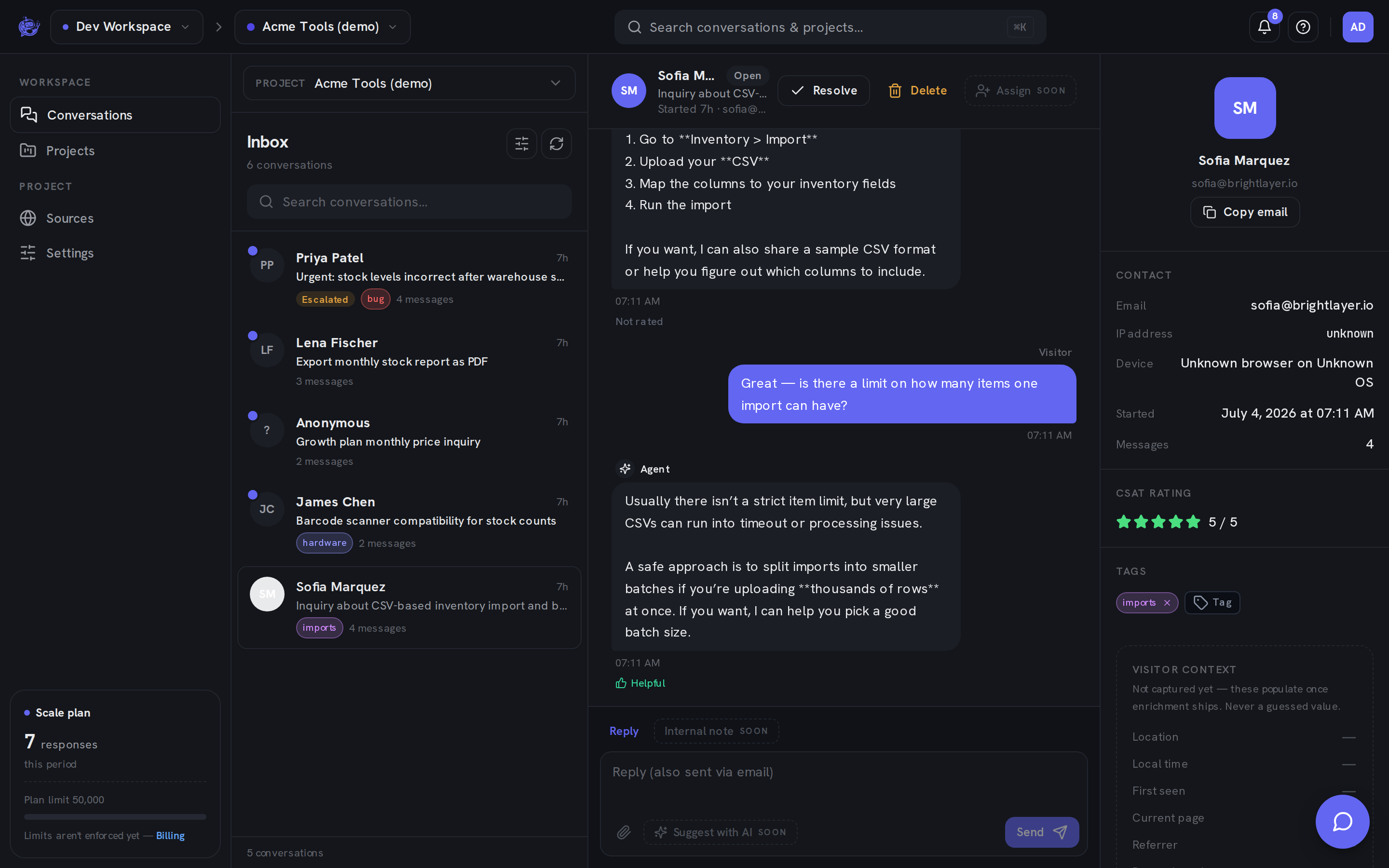
Who's who in the transcript
Every message is labeled and positioned by who sent it:
| Label | Position | Who it is | | ----------- | -------- | ------------------------------------------------------------- | | Agent | Left | The AI support agent, with a sparkle avatar and a gray bubble | | Visitor | Right | The person being helped, in a dark bubble | | You | Right | A teammate's reply from the inbox, shown as a bordered card |
Handoff notices — for example when a visitor asks for a human — render centered in the thread with a headset icon, so escalations are easy to spot while scrolling. Long threads load the most recent messages first; click Load older messages at the top to page back.
The thread header
The header shows the visitor's name (or "Anonymous"), a status pill (Open, Escalated, or Resolved), and a subtitle with when the conversation started, the visitor's email, and their device.
Below the name sits an AI summary — a short, automatically generated recap of what the conversation is about. The same summary is used as the row preview in the inbox list, so you can triage without opening every thread.
From the header you can Resolve or Reopen the conversation, or Delete it (with a confirmation). Assign is marked coming soon in the UI, as are the composer's Internal note, attachments, and Suggest with AI.
Replying
Type in the composer at the bottom of the thread. Enter sends; Shift+Enter inserts a newline.
Where your reply goes depends on what the visitor shared:
- It always appears in the widget on the visitor's site.
- If the visitor shared an email address, it's also sent to them by email — and their email replies thread back into this same conversation.
The composer's placeholder tells you which case you're in: "Reply (also sent via email)" when an address is on file, or "Reply (no email — shows in the widget on next visit)" when it isn't.
Once you've replied to an escalated conversation, the AI agent stays silent in that thread — see Escalation for the full handoff flow.
Message ratings
AI replies can carry the visitor's thumbs rating, shown under the bubble as Helpful, Not helpful, or "Not rated". Visitors rate individual answers from the widget; in the inbox the rating is read-only — it's a quick signal for which answers to double-check or promote.
This per-message rating is separate from the conversation-level CSAT score in the details panel below.
The details panel
On desktop the details panel sits to the right of the thread; on smaller screens it opens as a sheet. It shows:
| Section | Contents | | ----------- | -------------------------------------------------------------------------------------- | | Contact | Email (with a copy button), IP, device, when the conversation started, message count | | Status | An amber banner with the date if escalated; a green banner if resolved | | Rating | The visitor's CSAT score as 1–5 stars, or "Not rated" | | Tags | The conversation's tags — add existing workspace tags, create new ones, or remove them |
The resolved banner tells you who closed the conversation: "Resolved by the visitor" (visitors can mark their own conversation resolved from the widget) or "Resolved by your team".
Add to knowledge
When you write a good reply, don't let it disappear into one thread — teach it to the agent. Every teammate reply in the transcript has an Add to knowledge button.
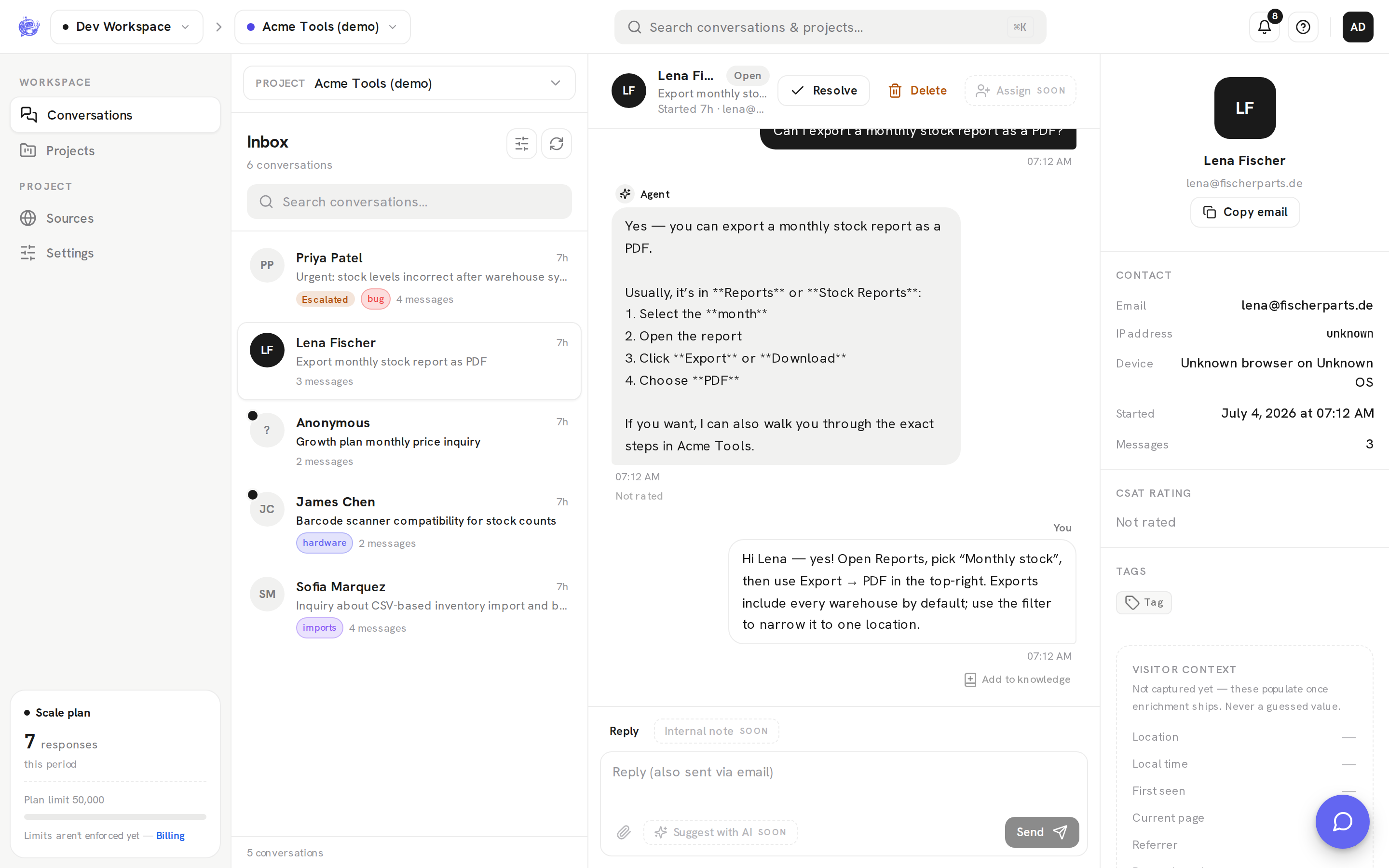
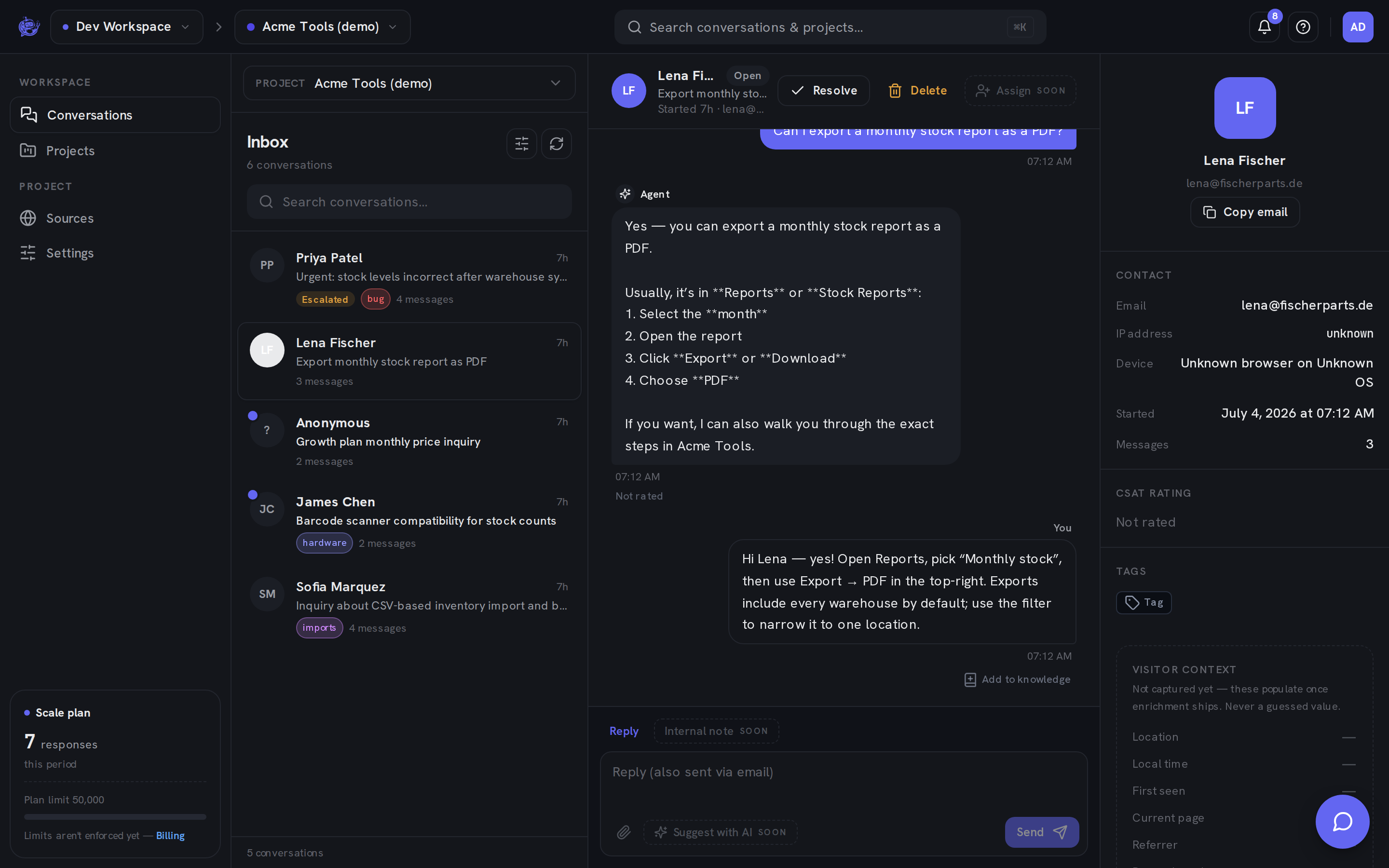
Clicking it opens a dialog with an editable Question and Answer:
- The question is prefilled from the visitor message your reply answered — edit it into the general form other visitors would ask.
- The answer is prefilled with your reply — trim anything conversation-specific.
- Click Add to knowledge.
This creates a Q&A pair source in the project's knowledge base, and the button flips to an In knowledge badge confirming it was saved. The new source appears on the project's Sources page tagged "Promoted from a reply", where you can manage it like any other source — from then on, the agent uses it to answer future visitors.