Search & command palette
Find any conversation or project from anywhere in the dashboard with the ⌘K command palette
The command palette gives you workspace-wide search. Press ⌘K (macOS) or Ctrl+K (Windows/Linux) anywhere in the dashboard — or click the search box in the top bar — and start typing.
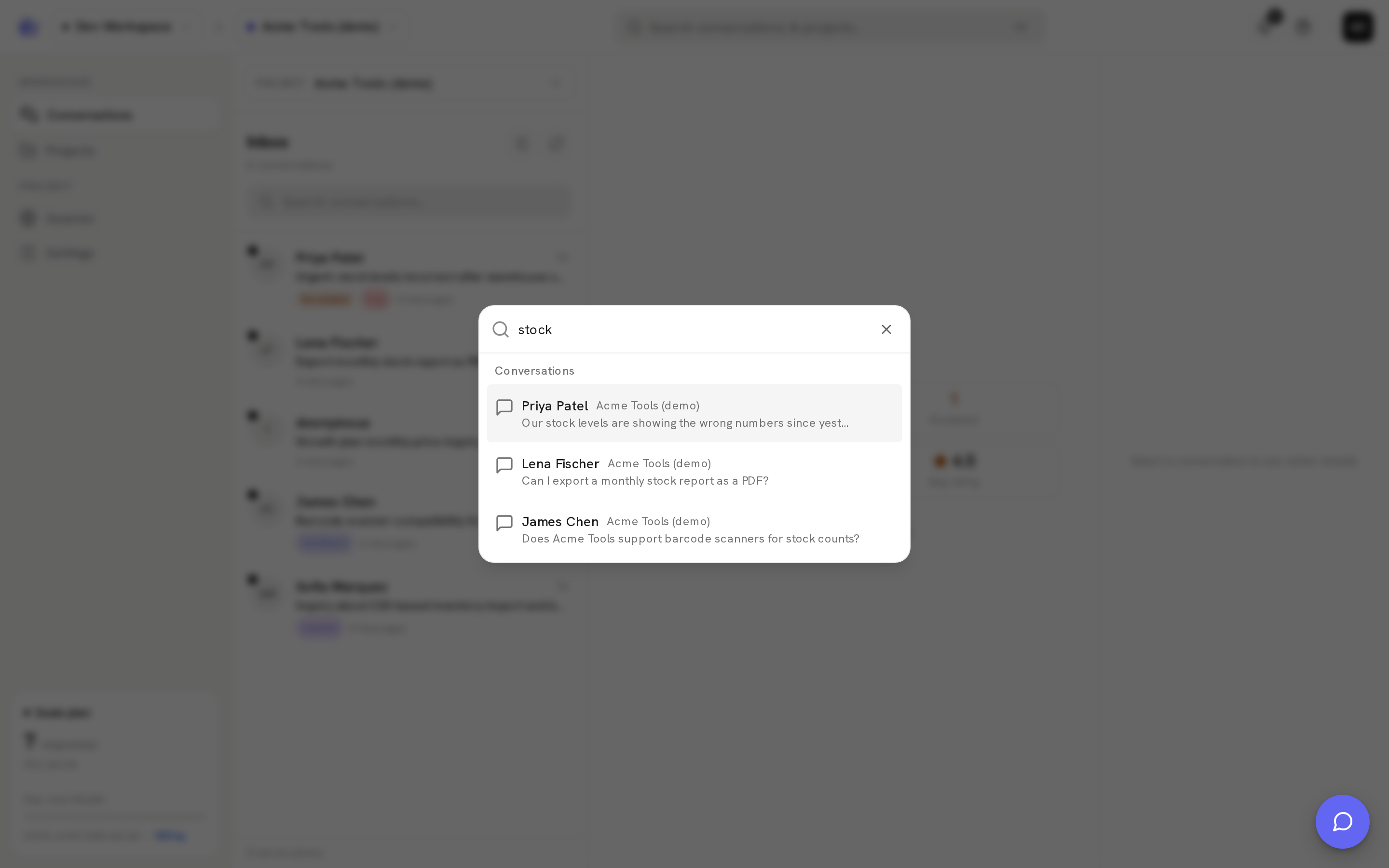
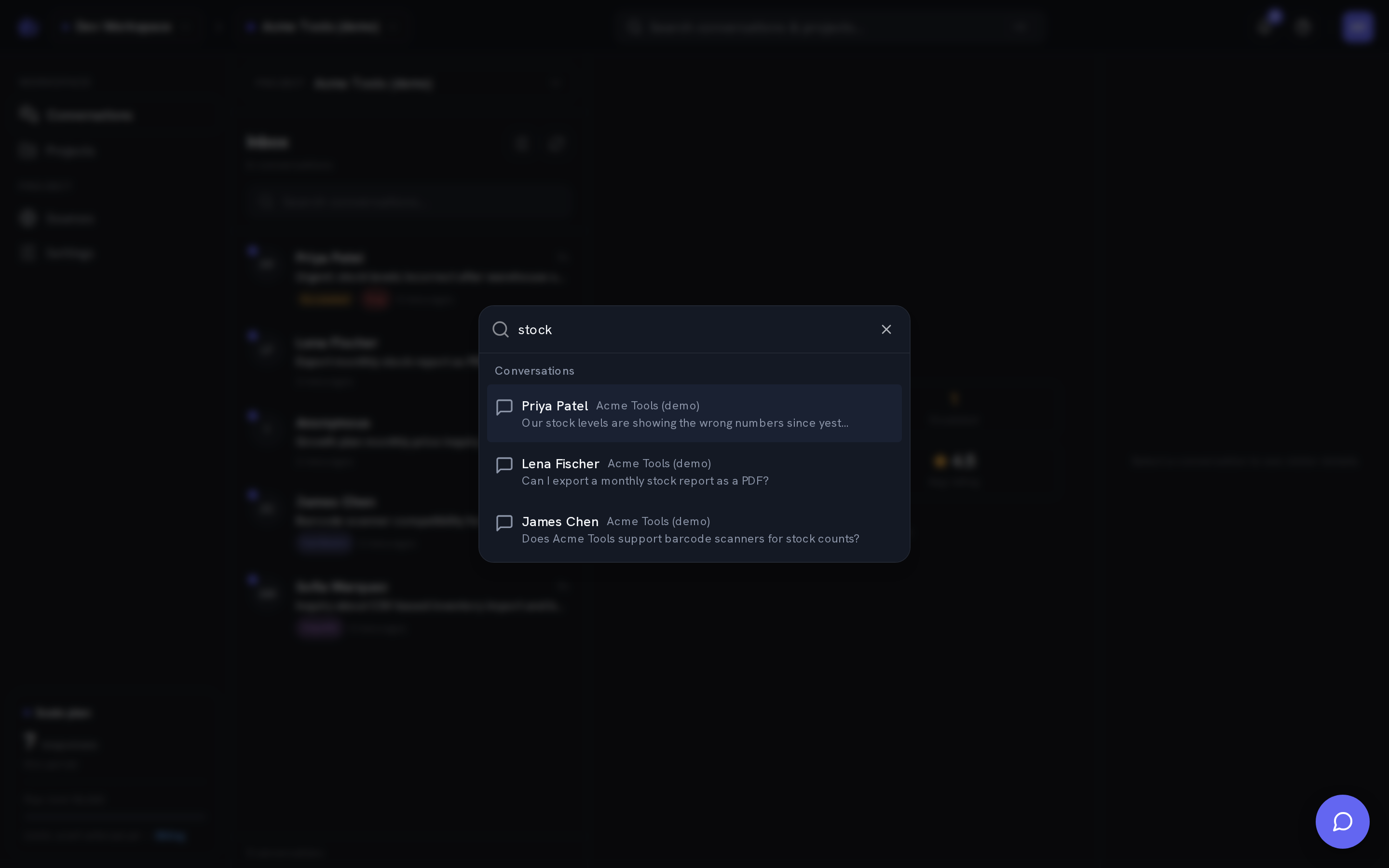
What it searches
The palette searches the active workspace, across all of its projects:
| Result group | Matched on | | ----------------- | --------------------------------------------- | | Conversations | Visitor name, visitor email, and message text | | Projects | Project name |
Type at least 2 characters — shorter terms aren't searched. Results update as you type, and "No matches" only appears once your current term has actually been searched.
Reading the results
Each conversation result shows the visitor's name (or their email, or "Anonymous visitor" if they shared neither), the project the conversation belongs to, and a snippet explaining the match — an excerpt of the matching message, or the name or email that hit. Conversations are ordered by most recent activity; projects are listed alphabetically.
Jumping to a result
Move through results with the arrow keys and press Enter to open the highlighted one, or click it:
- A conversation opens its thread directly in the Inbox, with the right project selected.
- A project opens its settings page.
Esc closes the palette.
Palette vs. inbox search
The inbox list rail has its own search box. Both match visitor name, email, and message text, but they cover different ground:
- The command palette searches every project in the workspace at once, and also finds projects by name.
- The inbox search filters the conversation list for the currently selected project only, alongside the status and tag filters.
Use the palette when you know who or what you're looking for but not which project it lives in.