Inbox
Triage every conversation your support agent handles — search, filter by status and tag, and watch the headline numbers
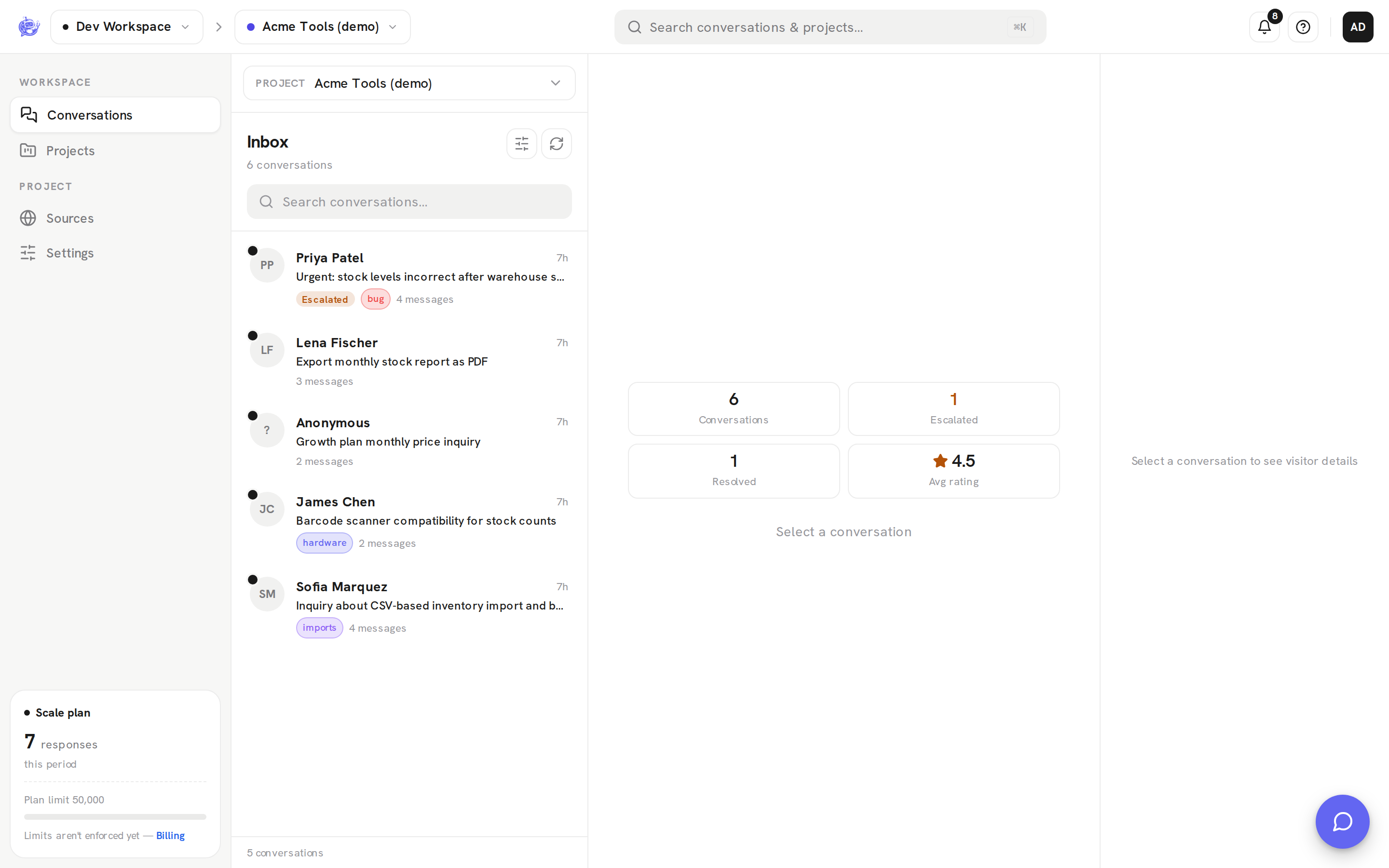
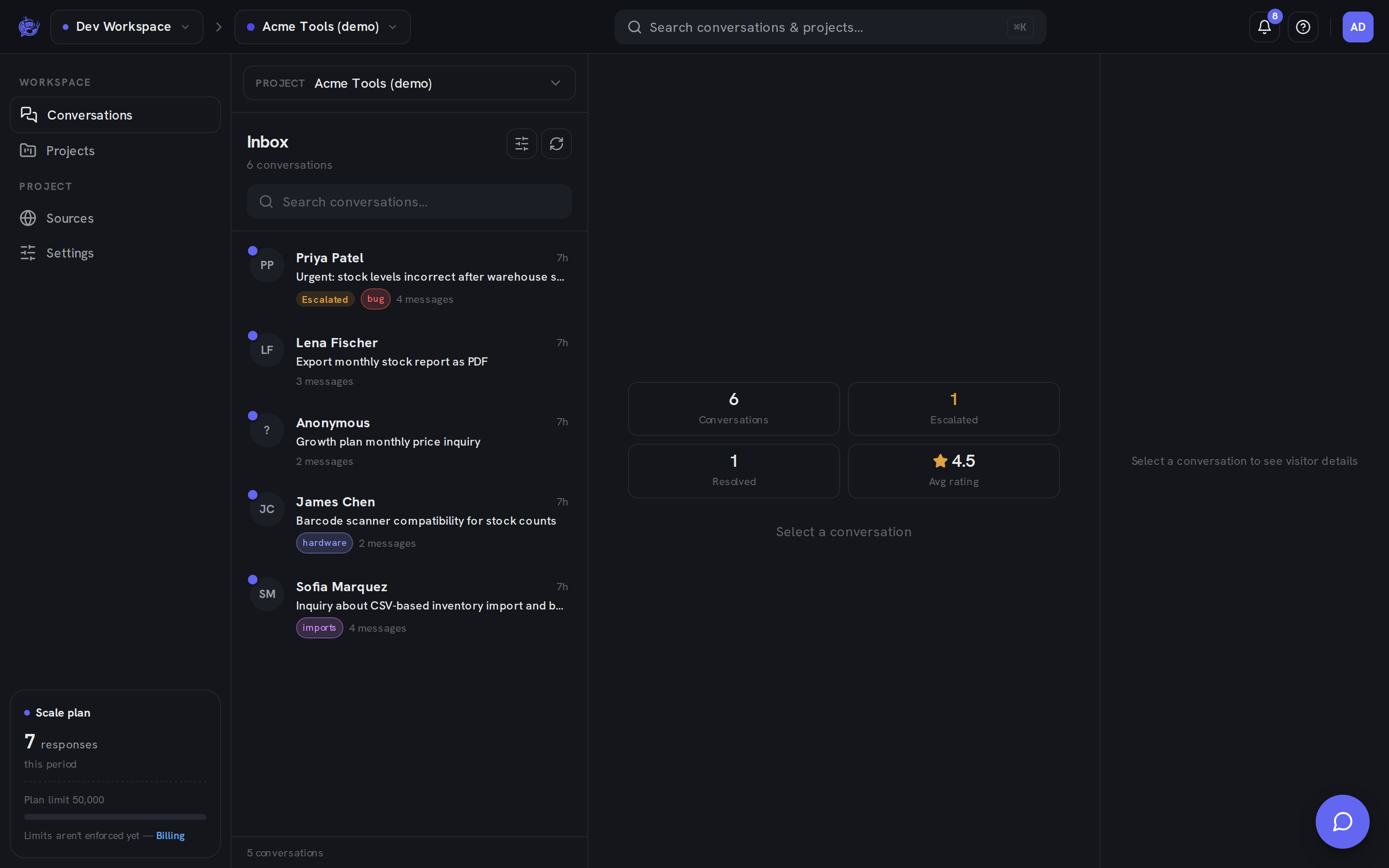
The Inbox at app.clankersupport.com/inbox is where every conversation lands. It's split into three panes: the conversation list on the left, the message thread in the middle, and a details panel on the right. This page covers the list — finding, filtering, and scanning conversations.
Choosing a project
The Project dropdown at the top of the list shows one project's conversations at a time. It's independent of the project switcher in the top bar, so you can look through a different agent's inbox without changing what the rest of the dashboard points at.
Conversation rows
Each row is designed so you can triage without opening the thread:
| Element | Meaning | | ----------------- | ----------------------------------------------------------------------------------------------------------------------------- | | Name & time | The visitor's name (or Anonymous) with an initials avatar, plus the time of the last activity | | Unread dot | An indigo dot on the avatar; the name and preview stay bold until you open the conversation | | Preview | An AI-generated summary of the conversation once one is available, otherwise the visitor's first message | | Status badge | Resolved (green) or Escalated (amber) — a resolved conversation shows Resolved even if it was escalated along the way | | Tag chips | Any workspace tags on the conversation, with their colors | | Message count | The total number of messages in the conversation |
Conversations with no badge are open. Escalated ones are waiting on your team — see Escalation.
The list loads a page at a time. Scrolling to the bottom fetches the next page automatically, and the Load more button does the same explicitly.
Stats cards
Until you select a conversation, the center pane shows four cards summarizing the whole project:
| Card | What it counts | | ----------------- | ------------------------------------------------------------------------------------------------------ | | Conversations | Every conversation in the project | | Escalated | Conversations handed off to your team | | Resolved | Conversations marked resolved — by your team or by the visitor | | Avg rating | The average CSAT score (1–5) across rated conversations; shows — until a visitor has left a rating |
These are true project-wide totals, not counts of the rows loaded so far. The average rating comes from the per-conversation CSAT score visitors leave when closing the chat — it's separate from the per-message thumbs you see inside a thread.
Search
The search box filters the list live as you type, matching visitor names, email addresses, and message text — across the whole project, not just the loaded rows. Matching rows swap their preview for the match itself: a Name or Email label when the term matched contact details, or a highlighted excerpt when it matched a message.
Filters
The sliders button above the search box opens the filter panel. A badge on the button shows how many filters are active, so a narrowed list is never a surprise.
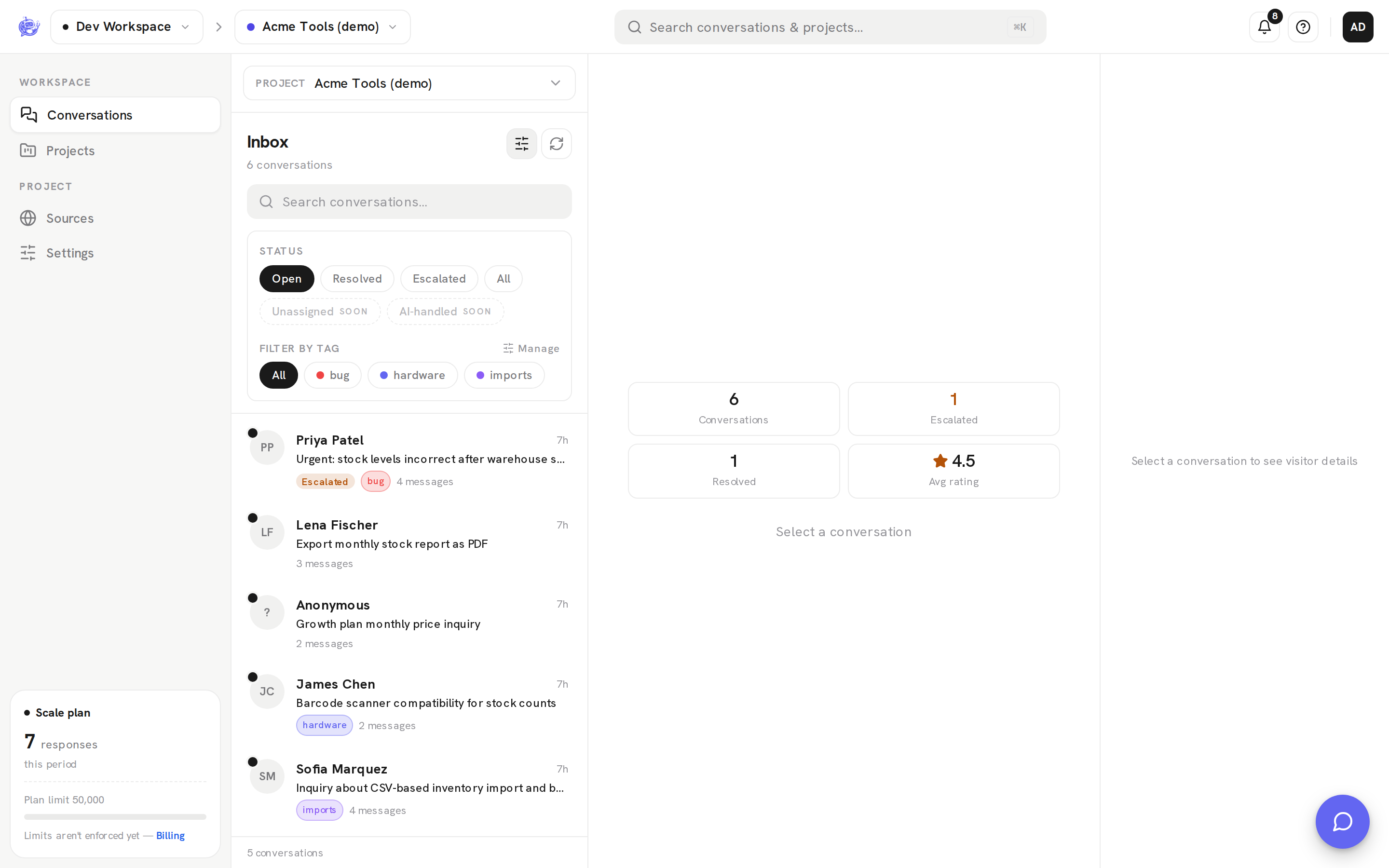
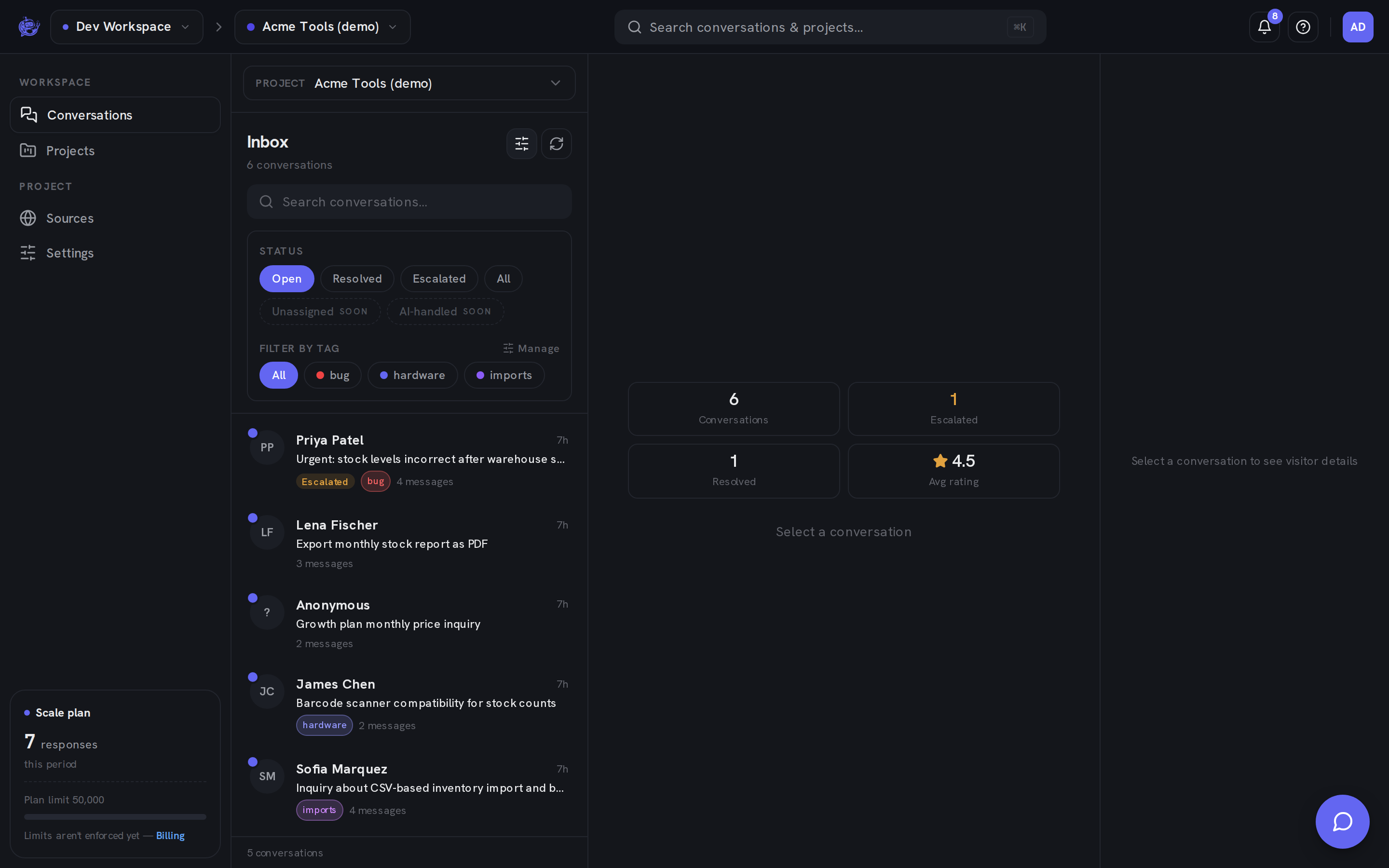
- Status — Open (the default view), Resolved, Escalated, or All. Two more pills, Unassigned and AI-handled, appear dimmed — they're marked coming soon in the UI.
- Filter by tag — select one or more workspace tags; a conversation matches if it carries any of them. All clears the tag selection.
- Manage — admins and owners can open the Manage tags dialog from here to rename, recolor, or delete workspace tags.
Refresh
The refresh button next to the Filters toggle refetches both the conversation list and the stats cards on demand.